Google Analytics
The Google Analytics integration adds page-view tracking to the CyberStore Site and can send completed-order data as Google Ecommerce purchase events. Use it to measure storefront traffic and purchasing behavior through an Analytics property controlled by the organization.
Prepare the Analytics property
Create or identify the Google Analytics 4 property for the CyberStore Site and obtain its measurement or tracker ID. Confirm who owns the property, who may access the collected data, and which consent or privacy controls must be in place before tracking begins.
Universal Analytics is retained only as a legacy CyberStore option. Use the Tag Manager (GA4) version for an active GA4 property unless a supported Site-specific requirement establishes otherwise.
Configure CyberStore
Open Site Manager > Site Configuration > Integrations and complete the Google Analytics Tracking settings.
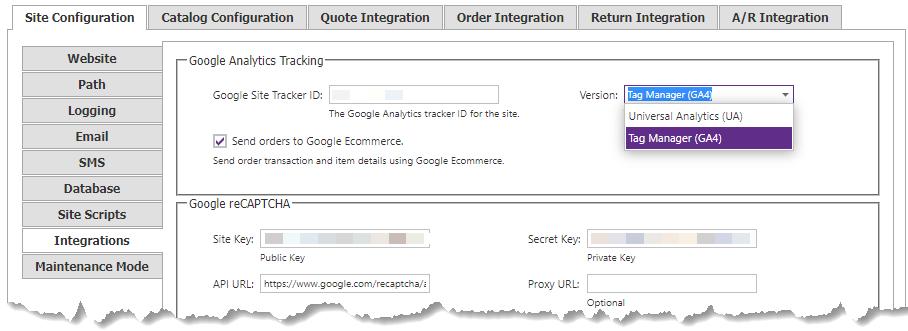
| Setting | Purpose |
|---|---|
| Google Site Tracker ID | Measurement or tracker ID issued for the Site’s Analytics property. Saving it enables page tracking for the selected version. |
| Version | Selects the script model CyberStore generates. Choose Tag Manager (GA4) for Google Analytics 4. |
| Send orders to Google Ecommerce | Adds purchase-event data to the checkout receipt page when the Analytics property is configured to accept ecommerce data. |
For the field-level Site Configuration reference, see Integrations settings.
Page tracking
With GA4 selected, CyberStore generates the Google tag initialization and configuration on each storefront page using the configured tracker ID. Do not add a second page-tracking implementation through Site Scripts or a template without coordinating it with this integration; duplicate tags can produce duplicate events and inflated metrics.
Purchase-event tracking
When Send orders to Google Ecommerce is enabled, CyberStore adds a GA4 purchase event to the order receipt page. The generated event can include:
| Event value | CyberStore transaction context |
|---|---|
currency | Sales order currency. |
transaction_id | Order transaction identifier. |
value | Transaction value. |
affiliation | CyberStore Site identity. |
shipping | Shipping or freight amount. |
tax | Tax amount, including applicable Canadian tax in the current implementation. |
items | Purchased item identifiers, names, categories, prices, and quantities. |
The event is generated on the receipt page, so testing should confirm both order completion and the browser event rather than relying only on saved configuration.
Validate the integration
- Save the tracker ID and GA4 version with ecommerce sending initially disabled.
- Visit representative storefront pages and confirm one page-view event per navigation.
- Enable Send orders to Google Ecommerce in a controlled environment.
- Place test orders covering tax, shipping, multiple quantities, discounts, and the Site’s supported currencies.
- Confirm one purchase event with the expected transaction and item values.
- Verify that consent behavior, data retention, and access meet organizational policy.
Do not place a real tracker ID in documentation, source control, or screenshots prepared for public use. Coordinate any custom Google tag or tag-manager code with the built-in integration to prevent duplicate tracking.