HotSpotDiagramDisplay Widget
The HotSpotDiagramDisplay widget presents a configured hot-spot diagram in the catalog. Selecting a hot spot opens the linked item’s details, including available image, price, and add-to-cart action.
Create the diagram and its item-linked hot spots in Hot Spot Diagram Maintenance, then associate the diagram with the applicable category or item.
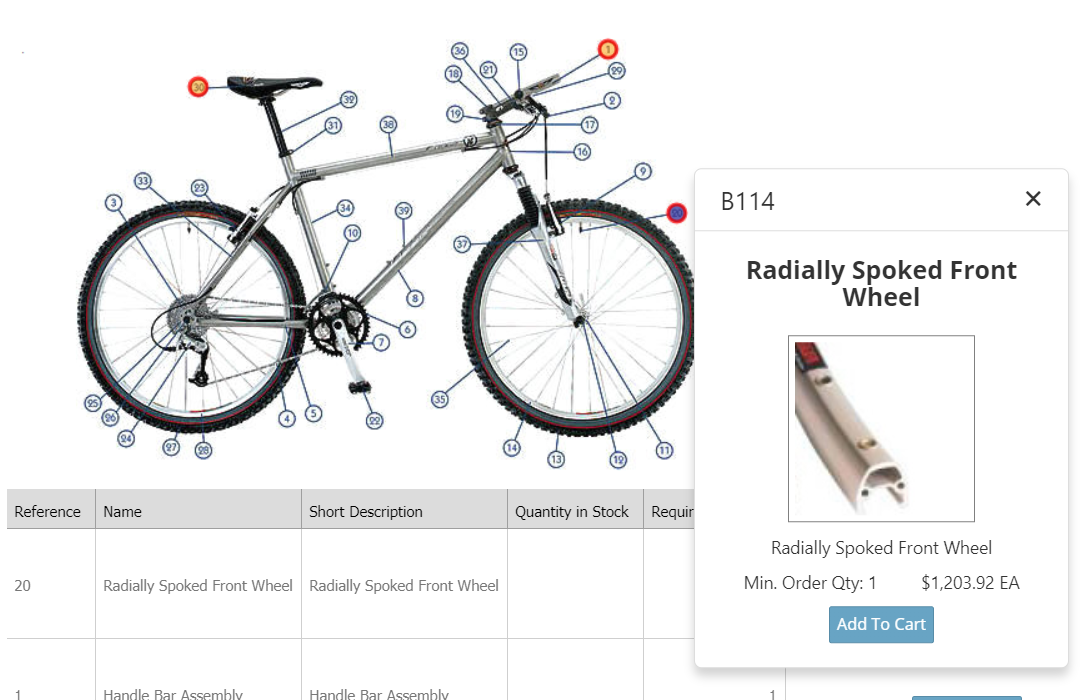
Add the widget to a page
<Control src="LoadWidgetControl.ascx"
    FileLocation="HotSpotDiagramDisplay.html"
    Options="shape: 'circle',
        popupWidth: 300,
        popupHeight: 400" />
The widget uses the diagram identifier supplied by the HSP query-string value by default. Use diagram_ID to select a specific diagram instead.
Widget options
| Option | Default | Valid values or format | Effect |
|---|---|---|---|
diagram_IDString | Not specified | Diagram identifier | Overrides the diagram selected from the page query string. |
widthNumber | Original diagram width | Pixels | Sets the diagram width and proportionally scales its height. |
shapeString | 'circle' | 'circle', 'triangle', 'square', 'pentagon', 'octagon', 'star' | Sets the hot-spot overlay shape. |
popupWidthNumber | 300 | Pixels | Sets the item-popup width. |
popupHeightNumber | 400 | Pixels | Sets the item-popup height. |
popupShowTitleBoolean | true | true, false | Controls the popup title bar. |
popupShowCloseButtonBoolean | true | true, false | Controls the popup close button. |
popupCloseOnOutsideClickBoolean | true | true, false | Allows a click outside the popup or the Esc key to close it. |
popupModalBoolean | false | true, false | Displays the item popup as a modal window. |
addToCartButtonTextString | 'Add to Cart' | Text | Sets the add-to-cart button label. |
addedToCartButtonTextString | 'Added to Cart' | Text | Sets the add-to-cart status label. |
addedToCartMessageTimeoutNumber | 1500 | Milliseconds | Sets the success message duration. |
addToCartErrorMessageTimeoutNumber | 3500 | Milliseconds | Sets the error message duration. |
The legacy source also supports CSS-class options for diagram, item, and button elements. Use site styling for appearance changes.
Validate the diagram
- Open a category or item with an associated hot-spot diagram.
- Confirm the configured overlay shape appears over each hot spot.
- Select a hot spot and verify the linked item details match catalog configuration.
- When available, add the item to the cart and confirm the cart updates correctly.