Updating Item Data with Excel
An Excel import is useful when the same kinds of CyberStore-managed item information must be changed across many existing products. It is an update process, not an item-loading process: every referenced item must already exist in CyberStore.
The import accepts .xls and .xlsx workbooks. It can update fields in the CyberStore item record except StockCode, Item_ID, and Messages.
Prepare the workbook deliberately
Place StockCode in the first cell of the heading row. CyberStore uses that value as the unique key that identifies the item to update. Add the exact CyberStore item field names for the remaining column headings, then enter one stock code and its corresponding values on each following row.
For example, a workbook might include StockCode, Headline, SubHeadline, ShortDescription, and LongDescription. Only include columns that are intentionally part of the update. The Item Maintenance Grid Export and Item Update Import samples provide reviewed starting layouts.
A blank cell writes a blank value to the corresponding CyberStore field. Remove an unintended column from the import rather than leaving its cells blank.
Format each value for its target field. Boolean fields such as Approved use 0 for false and 1 for true. Link fields can contain either a relative reference such as /pdfs/A101.pdf or a complete URL.
Import and review the result
Open Tools > System Utilities, then use Upload Item Information on the General tab.
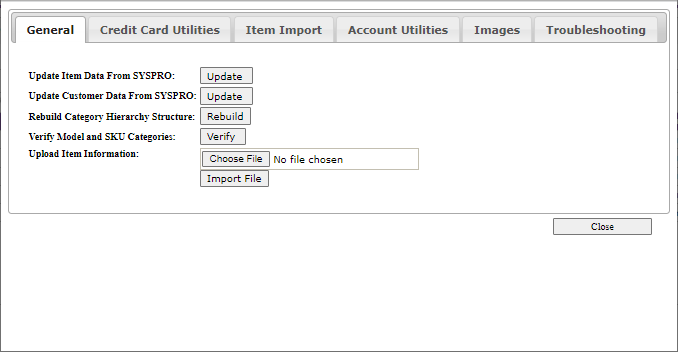
Choose the prepared workbook and select Import File. After processing, CyberStore reports whether the import succeeded, how many records it read, and how many items it changed.
Review that result before treating the update as complete. If the workbook affected fewer or more items than expected, correct the source data or headings before performing another import.