Cart_QuickOrder Widget
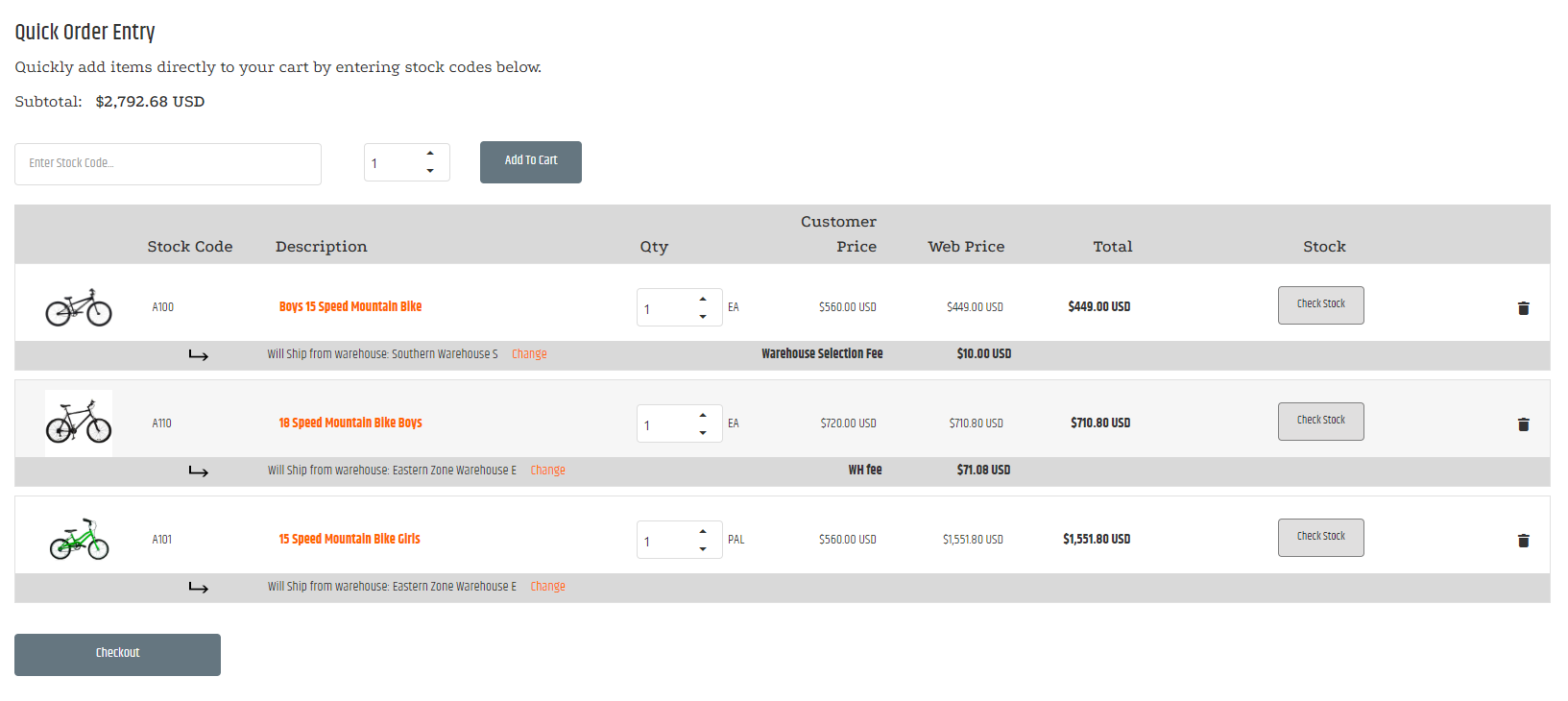
The Cart_QuickOrder widget lets signed-in shoppers add one or more items to the active cart by entering a stock code and quantity. It displays the active cart so the shopper can add or remove lines and update quantities.
Shopper experience
The widget provides a streamlined cart-entry experience. Depending on the widget configuration and the shopper’s available options, it can:
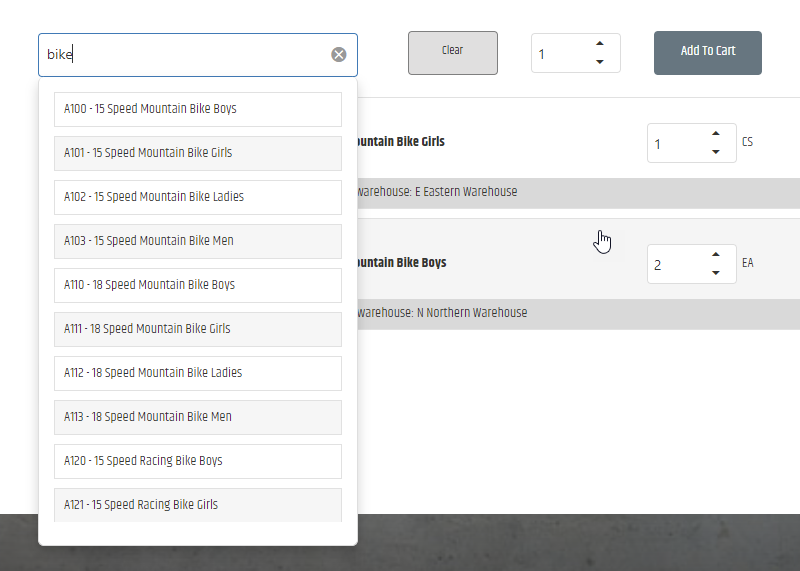
- Suggest matching stock codes and item names as the shopper enters text.
- Add items to the cart and update or remove existing cart lines.
- Display item fees that apply to cart lines.
- Let the shopper check available inventory.
- Let eligible shoppers select a ship-from warehouse for an item.
The active cart still follows CyberStore cart rules. For cart recalculation and checkout-lock behavior, see Shopping Cart Logic.
Search for items
When autocomplete is enabled, the widget lists matching stock codes and item names as the shopper enters text. The search mode controls whether suggestions match the beginning of a value, any part of a value, or an exact stock code.
Select a warehouse
When warehouse selection is enabled for the shopper’s Customer Class, the widget can display the current ship-from warehouse and provide a Change link. The shopper can select a permitted warehouse or leave the line with no preference. A selected warehouse can add a configured fee.
For warehouse eligibility, precedence, and surcharge behavior, see Warehouse Selection.
Add the widget to a page
Load the widget from SitePages.config using LoadWidgetControl.ascx. The widget requires a signed-in shopper.
<Control src="LoadWidgetControl.ascx"
    FileLocation="Cart_QuickOrder.html"
    RequireLogin="true" />
For the page and placeholder structure, see Using Widgets and The SitePages.config File.
Widget options
Use these options to configure search, cart display, and input behavior.
Search options
| Option | Default | Valid values or format | Effect |
|---|---|---|---|
EnableFilterModeSelectionBoolean | Not specified | true, false | Enables the autocomplete drop-down when the search mode supports suggestions. |
AutoCompleteSearchModeString | 'StartsWith' | 'StartsWith', 'Contains', 'Exact' | StartsWith searches stock codes and item names beginning with the entered text. Contains searches for text anywhere in those values. Exact searches stock codes only and does not display a suggestion list. |
StockCodeFilterMinimumLengthNumber | 2 | Number of characters | Sets the number of entered characters required before an autocomplete search returns suggestions. |
StockCodeFilterDelayNumber | 10 | Milliseconds | Delays the autocomplete search after input. |
StockCodeFilterDropDownLengthNumber | 8 | Number of items | Sets the maximum number of suggestions shown in the autocomplete list. |
Display options
| Option | Default | Valid values or format | Effect |
|---|---|---|---|
ShowColumnHeaderBoolean | true | true, false | Displays the cart column headers when the cart contains items. |
DisplayCartHeaderCustomerPriceBoolean | true | true, false | Displays the Customer Price column. |
StockCodeColumnHeaderTextString | 'Stock Code' | Text | Sets the Stock Code column heading. |
DescriptionColumnHeaderTextString | 'Description' | Text | Sets the Description column heading. |
QuantityColumnHeaderTextString | 'Qty' | Text | Sets the Quantity column heading. |
ExtPriceColumnHeaderTextString | 'Total' | Text | Sets the total-price column heading. |
OnHandQuantityColumnHeaderTextString | 'Stock' | Text | Sets the inventory-quantity column heading. |
EnableOnHandQuantityDisplayBoolean | Not specified | true, false | Lets the shopper use the inventory check to view on-hand quantity for an item. |
Input and navigation options
| Option | Default | Valid values or format | Effect |
|---|---|---|---|
DefaultFocusedElementIDString | 'skuNumber' | 'skuNumber', 'skuQty' | Sets the field that receives focus when the page loads. |
AfterQuantityFocusedElementIDString | 'addToCartBtn' | 'addToCartBtn', 'skuNumber', 'skuQty' | Sets the element that receives focus after the quantity field loses focus. |
QuantityInputEnterBehaviorString | 'addToCart' | 'tab', 'addToCart' | Determines the action taken when the shopper presses Enter in the quantity field. |
For example:
<Control src="LoadWidgetControl.ascx"
    FileLocation="Cart_QuickOrder.html"
    RequireLogin="true"
    Options="ShowColumnHeader: true,
        DisplayCartHeaderCustomerPrice: true,
        AutoCompleteSearchMode: 'StartsWith',
        StockCodeFilterMinimumLength: 2,
        EnableFilterModeSelection: true,
        StockCodeFilterDelay: 10,
        EnableOnHandQuantityDisplay: true,
        StockCodeFilterDropDownLength: 8,
        StockCodeColumnHeaderText: 'Stock Code',
        DescriptionColumnHeaderText: 'Description',
        QuantityColumnHeaderText: 'Qty',
        ExtPriceColumnHeaderText: 'Total',
        OnHandQuantityColumnHeaderText: 'Stock',
        DefaultFocusedElementID: 'skuNumber',
        AfterQuantityFocusedElementID: 'addToCartBtn',
        QuantityInputEnterBehavior: 'addToCart'" />
Validate the widget
- Sign in with a shopper account that can use Quick Order.
- Add an item by stock code and confirm the cart updates.
- Change a quantity and remove a line to confirm the displayed cart updates.
- Test autocomplete with each configured search mode.
- When warehouse selection is available, select a permitted warehouse and confirm the cart shows the selected warehouse and any applicable fee.
- Confirm the configured labels, focus behavior, and inventory display match the selected options.