Working with Models
A Model gives shoppers one place to understand and select among several closely related products. The products contained by the Model are SKUs: orderable SYSPRO stock codes that differ in a limited aspect such as size, color, or another characteristic.
This relationship is different from a Category. A Category organizes any products that belong together for navigation, even when they are substantially different. A Model represents variations of essentially the same product.
Understand what belongs to the Model
Every SKU can belong to only one Model. The Model itself has a unique Model Number, but it is created and maintained only in CyberStore; it does not exist in SYSPRO as a stock code.
Consider a polo shirt available in red and green, with several sizes for each color. One practical structure is:
- A red-shirt Model with separate red small, medium, large, and other size SKUs.
- A green-shirt Model with its corresponding size SKUs.
- A Polo Shirts Category containing both Models and any SKU membership appropriate to the site’s navigation.
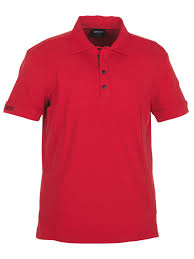
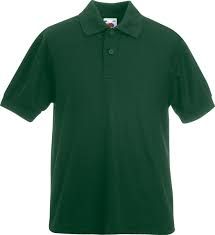
This distinction lets shoppers browse a concise product listing, open a Model page, and then choose the specific orderable SKU.
Plan the shopper experience
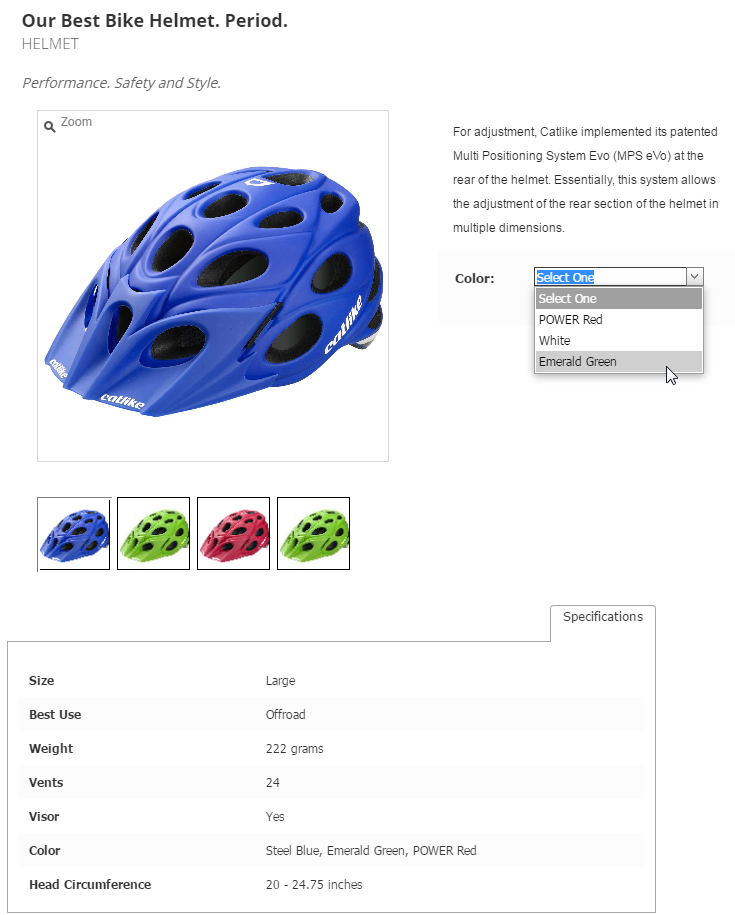
A Model landing page can describe the product family and show Characteristics common to its SKUs. Shoppers use images or selection Characteristics to move from that shared presentation to a specific SKU.
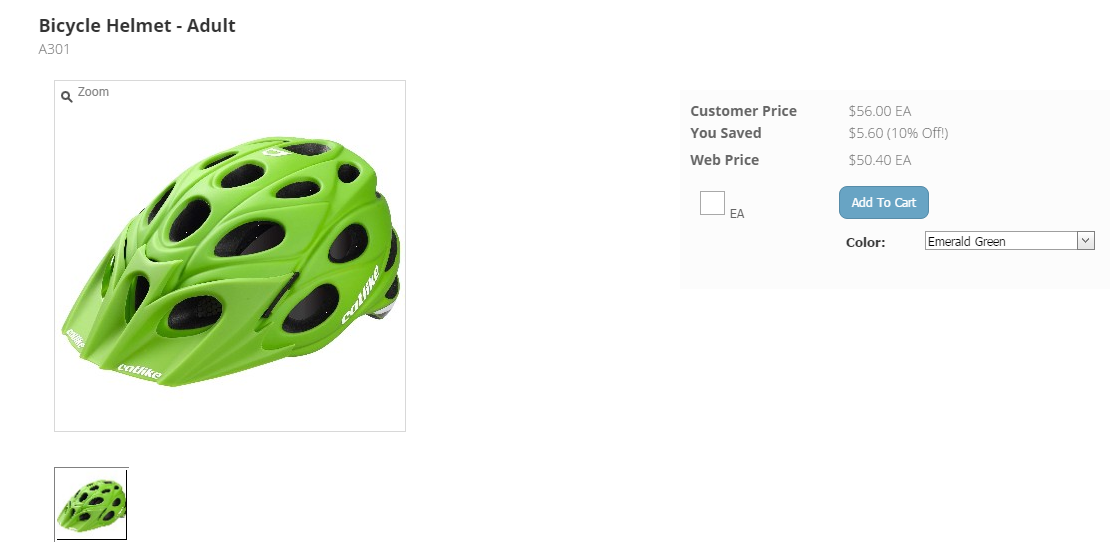
The SKU page represents the actual SYSPRO item that can be purchased. It contains the SKU-specific information and Add to Cart behavior.
A Model page therefore should contain information that applies to every SKU it represents. Details that vary between SKUs belong on the SKU records or in the Characteristics used for selection.
Create one Model through Item Maintenance
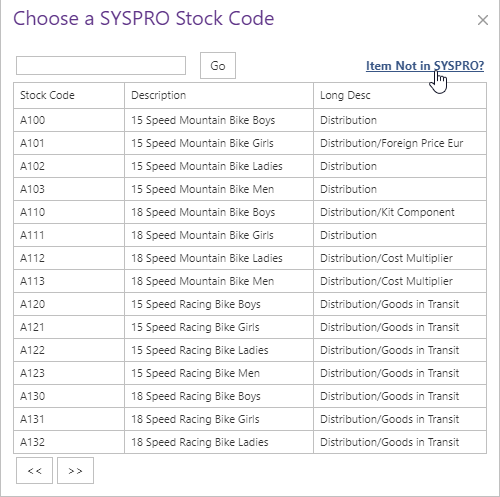
For a single Model, open Items > Item and Category Maintenance and select Add. The initial lookup searches for SYSPRO stock codes, but a Model is created through Item Not in SYSPRO?.
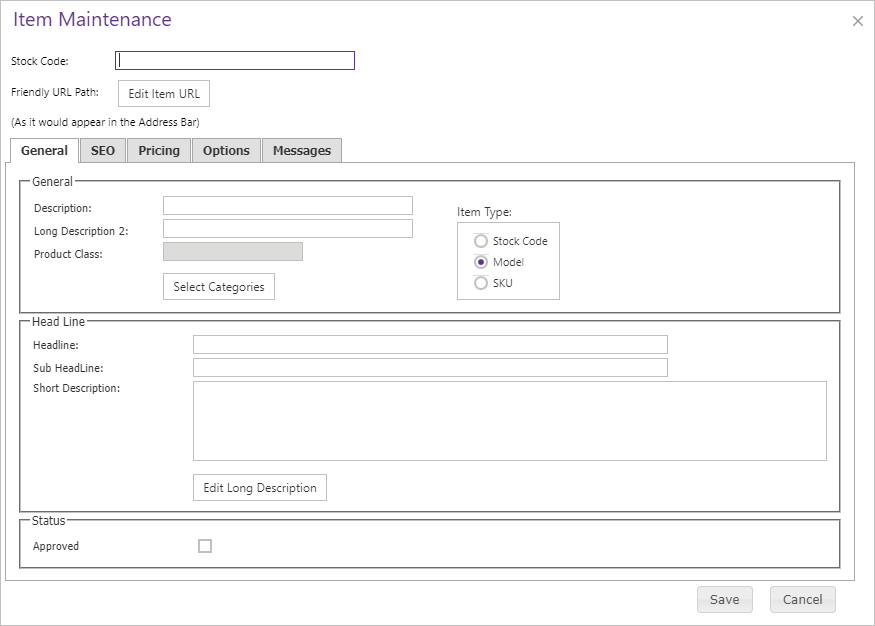
Confirm that a CyberStore-only item is intended, enter the Model Number as the Stock Code, and complete the Model information. CyberStore sets the Item Type to Model.
Create Models during a Category import
When several SKUs and their Models need to be organized together, open the Category’s Items tab and select Import Items. Enter each SKU stock code followed by its Model Number, separated by a tab or comma, with one relationship per line.
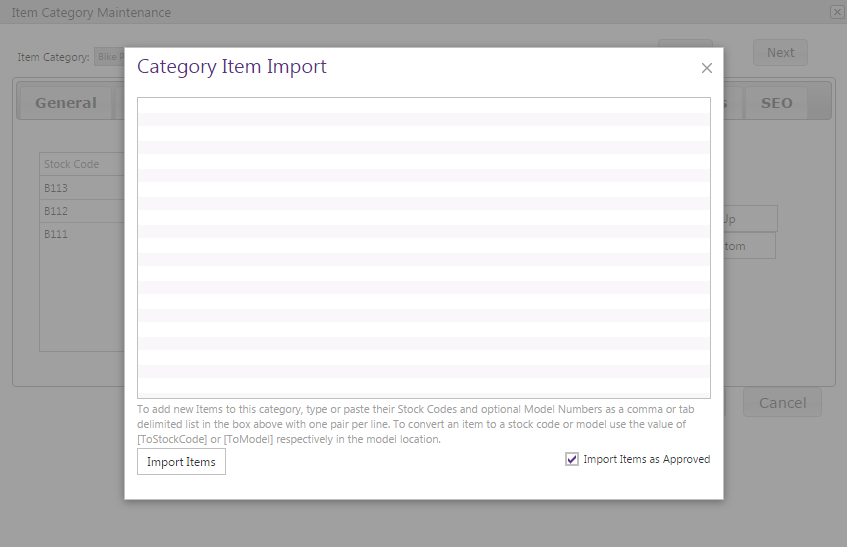
Importing adds SYSPRO items that are not yet in CyberStore and updates the Model relationship of items that already exist; it does not duplicate existing items.
After the import, run Tools > System Utilities > General > Verify Model and SKU Categories. Verification ensures that a Model is included in Categories containing its SKUs. It intentionally does not place every SKU into every Category containing the Model, because a Category may represent only a subset such as small shirts.
Maintain Model content
Models appear in the Item grid with their Item Type and Model Number relationships.
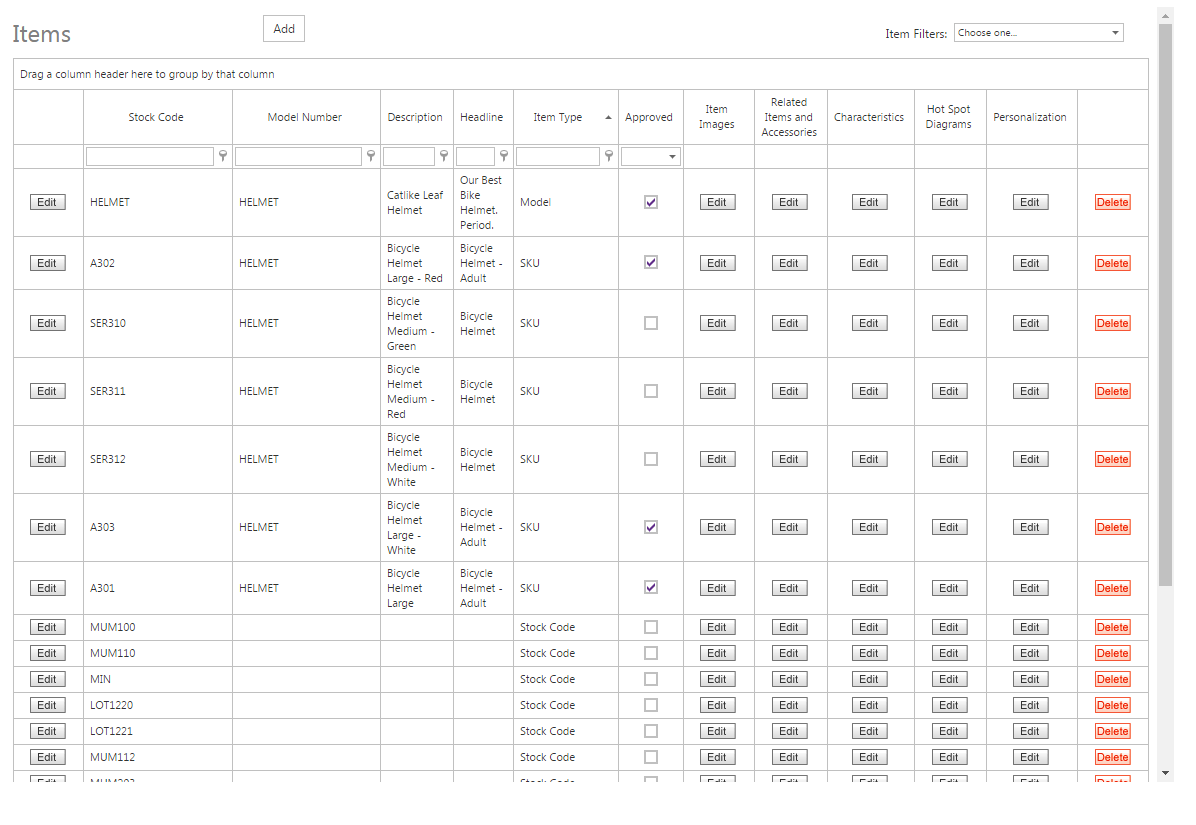
Edit the Model as you would another CyberStore item, but write the page for the shared product rather than one SKU. Descriptions, images, and Characteristics should make sense across the entire set of variations. Gray fields may still be completed; their appearance indicates that the value was not supplied by SYSPRO.