CyberStore Connect
Use CyberStore Connect to maintain the registered clients that are permitted to communicate with the CyberStore Connect interface. Each client has an identifying name, an authentication code, and an allowlist of IP addresses.
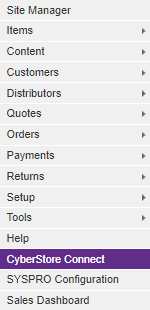
Open CyberStore Connect from the Management Console menu.
Review registered clients
The maintenance grid lists the existing CyberStore Connect clients. Use Add to register a client or Edit to change the selected client.
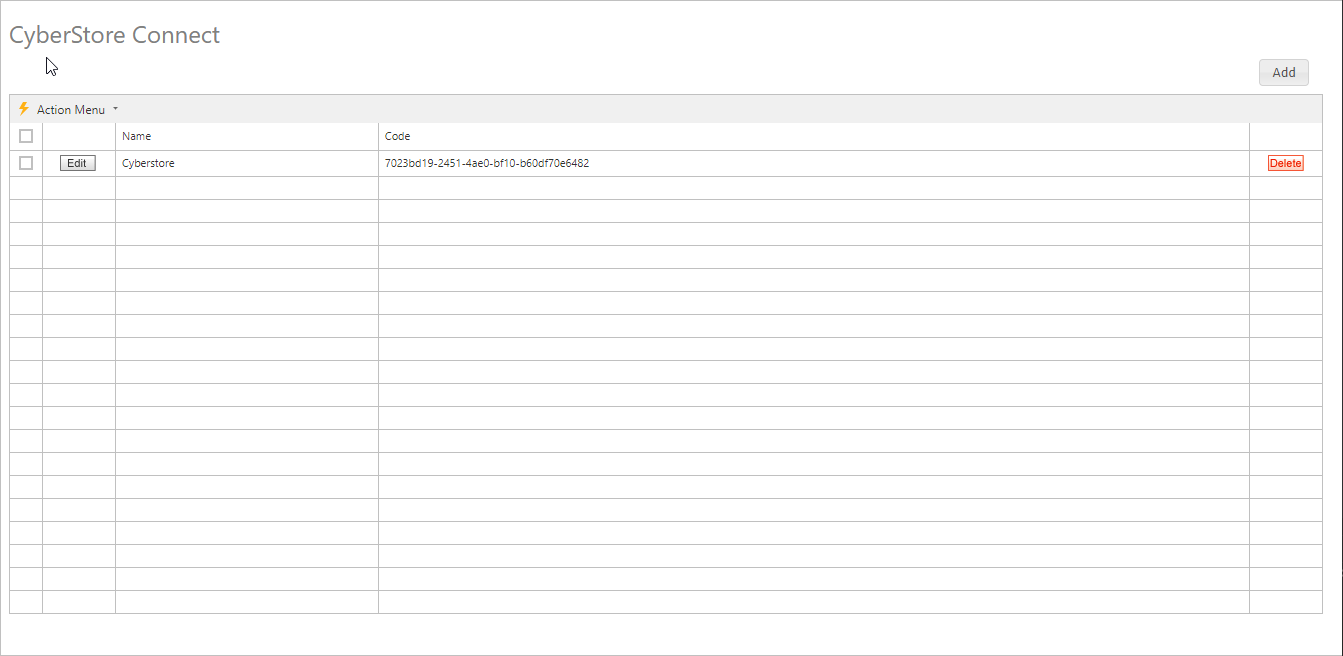
Treat client codes and permitted addresses as security-sensitive configuration. Before adding or changing a record, confirm the client identity and the addresses from which it is expected to connect.
Maintain general information
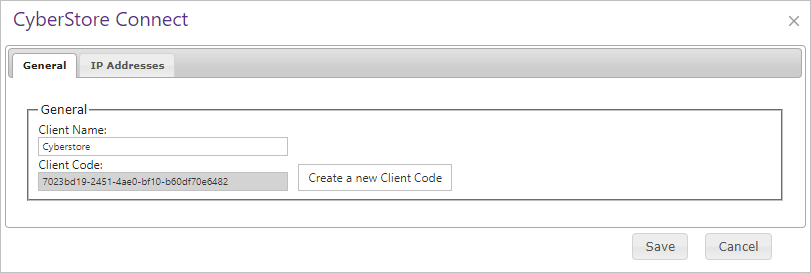
The General tab identifies the client and controls the code it uses to authenticate with CyberStore Connect.
| Field or action | Description |
|---|---|
| Client Name | Identifies the registered client. Use a name that distinguishes the application or integration from other clients. |
| Client Code | Authentication code assigned to the client when it registers with the CyberStore Connect interface. Protect this value as a credential. |
| Create a New Client Code | Generates a replacement client code. Coordinate the change with the client because its current code will no longer match the CyberStore record. |
Restrict permitted IP addresses
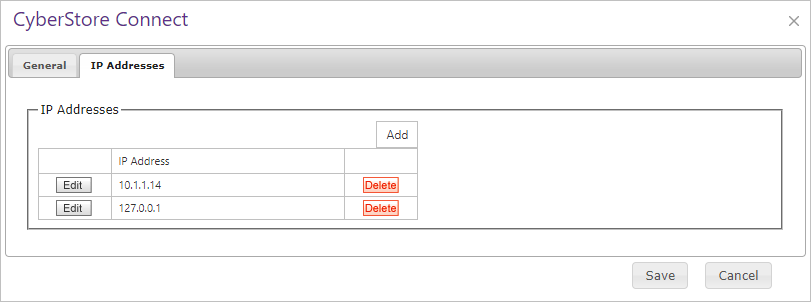
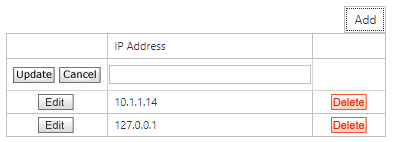
The IP Addresses tab defines the source addresses from which the client may connect. Keep this list limited to the addresses used by the registered client.
| Area | Description |
|---|---|
| IP Addresses | Lists the source IP addresses associated with the client. Review the list when an integration host or network address changes. |
| Add | Opens an entry field for another permitted address. |
When you add an address, enter the complete source IP address supplied for the client and confirm it before saving.
Save the client after completing changes on either tab. Test the client connection from an allowed address and confirm that an unlisted source cannot connect.