Checkout Widget
The Checkout widget provides a single-page checkout experience for shoppers with on-file accounts. It lets the shopper review the order, select or add a shipping address, choose an available payment method, and submit the order.
The Checkout widget is available only for on-file shoppers. B2C shoppers use the traditional multi-step checkout process.
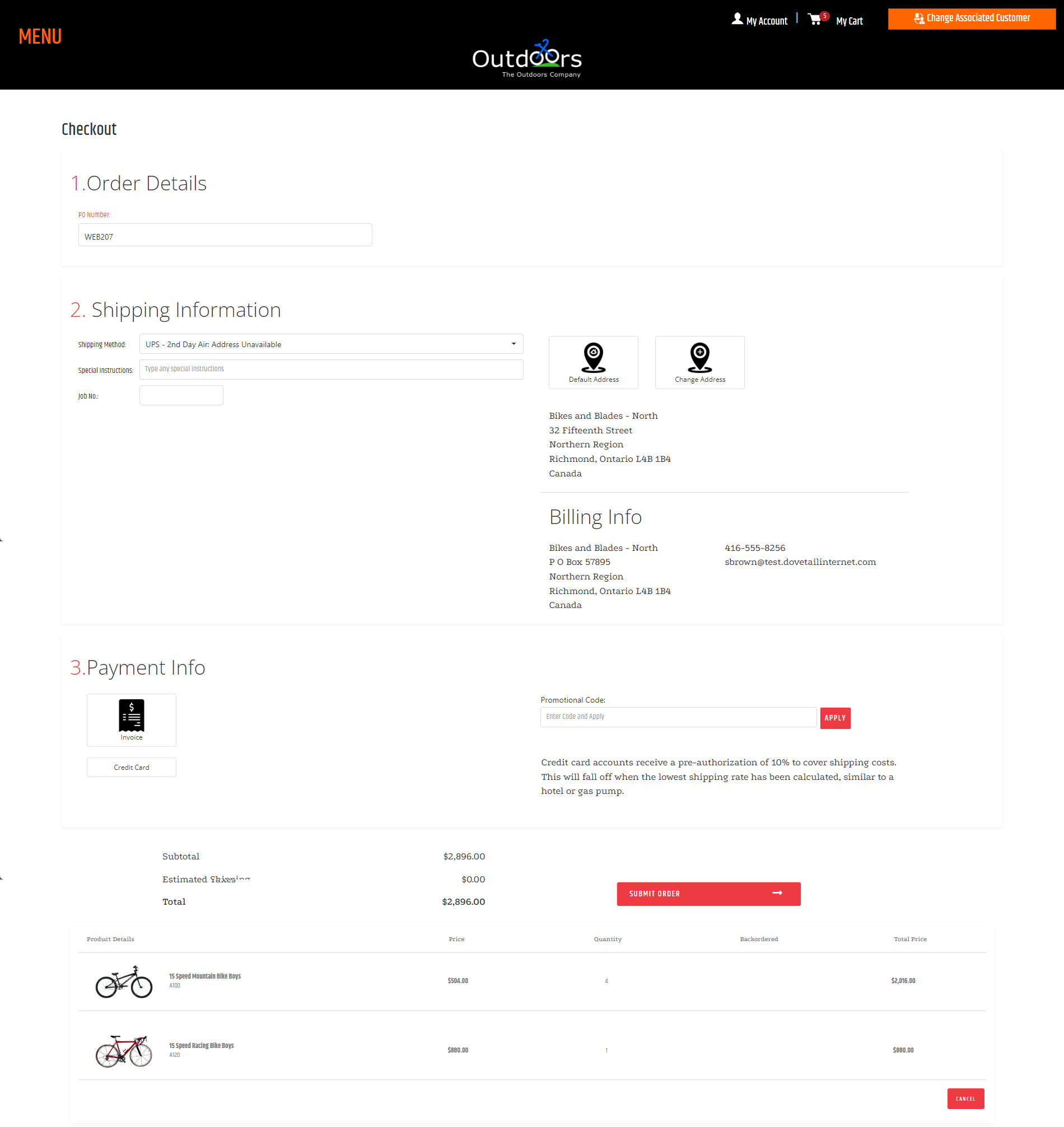
Checkout experience
The widget brings the information needed to complete the current order onto one page. Depending on the data and configuration available for the shopper, it can provide:
- A purchase-order number and requested ship date.
- Shipping-method selection, special instructions, and order-header comments.
- A saved shipping address or a one-time shipping address for the order.
- Invoice and credit-card payment options when they are available to the shopper.
- Promotional-code entry and an order summary that includes subtotal, shipping, tax, promotional value, and total.
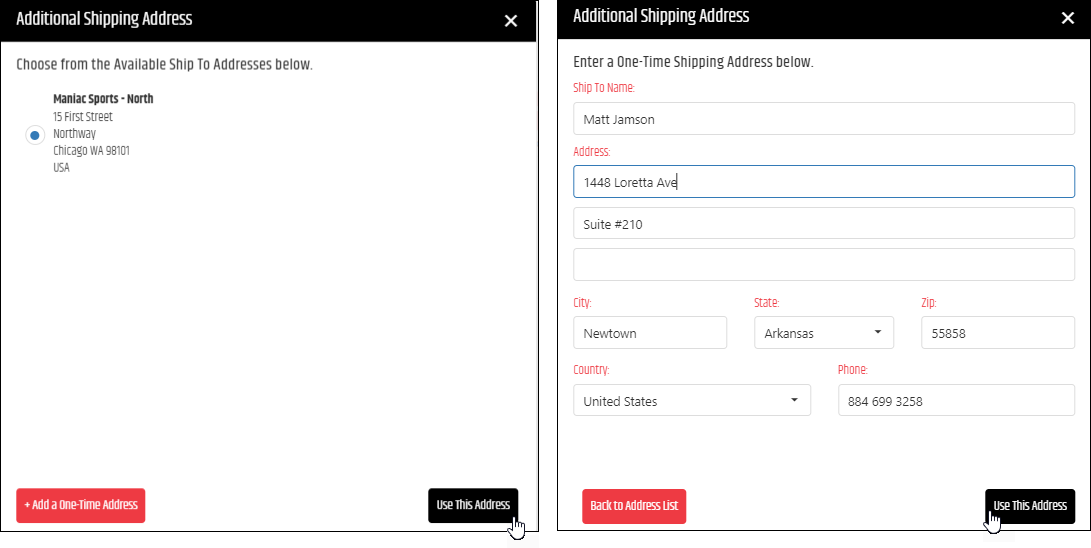
Validation and order submission
Before the order is submitted, the widget validates the required fields and the shipping address. The shipping address must be plausible and complete.
For a credit-card payment, the widget also confirms that the card type can be determined, the card number passes the Luhn checksum, the expiration month and year are valid numbers, and the CVN has the required number of characters. The order is submitted only after shipping and payment information pass validation.
Add the widget to a page
Load the widget from SitePages.config using LoadWidgetControl.ascx and Checkout.html.
<Control src="LoadWidgetControl.ascx"
    FileLocation="Checkout.html" />
To customize the default widget source, copy the widget source to the site’s Widgets folder using the same filename. The CyberStore page engine uses the site copy instead of the default widget source.
Widget options
Pass widget options through the control configuration when the checkout page requires different visible fields or labels.
| Option | Default | Valid values or format | Effect |
|---|---|---|---|
useDefaultPONumberBoolean | true | true, false | Uses OrderLookupData.DefaultPO when OrderData.PO is empty or null. |
showSpecialInstructionsBoolean | true | true, false | Shows the Special Instructions field in the shipping section. |
specialInstructionsLabelTextString | 'Special Instructions' | Text | Replaces the Special Instructions label. |
showOrderHeaderCommentsBoolean | true | true, false | Shows the Order Header Comments field. |
orderHeaderCommentsLabelTextString | 'Order Comments' | Text | Replaces the Order Header Comments label. |
showPaymentSectionBoolean | true | true, false | Shows or hides the Payment Information section, including payment-method selection and promotional-code entry. |
For example:
<Control src="LoadWidgetControl.ascx"
    Name="Checkout Widget"
    FileLocation="Checkout.html"
    Options="showPaymentSection:true,
        showOrderHeaderComments:true,
        useDefaultPONumber:true,
        specialInstructionsLabelText:'Delivery Notes',
        orderHeaderCommentsLabelText:'Customer Notes'" />
Data-driven behavior
The widget uses Order.SetupOrder to load the current order data and lookup data. The following values influence the checkout experience.
| Value | Effect |
|---|---|
OrderData.CanChangeShipDate | Enables or disables the requested ship-date field. |
OrderData.MinimumShipDate and OrderData.MaximumShipDate | Limit the requested ship date to the returned range. |
OrderData.RequestedShipDate | Provides the initial requested ship date when available. |
OrderData.PO | Provides the purchase-order value unless the default-PO option supplies an empty value. |
OrderLookupData.DefaultPO | Provides a default purchase-order value when useDefaultPONumber permits it. |
OrderData.AlternateKeyLabelText | Controls whether the Alternate Key field is shown and the label it uses. |
OrderData.WebPromotionCode | Provides the initial promotional code. |
OrderData.ConfirmationMessageText | Causes the widget to show a confirmation dialog before submitting the order. |