Customer Account Administration
Customer Account Administration lets a trusted B2B shopper manage Accounts linked to the same Customer without requiring a CyberStore Console operator for routine changes. A Customer Administrator can manage access for colleagues, delegate another administrator, and maintain shared Customer Item Lists.
Use the feature when the Customer organization should own day-to-day user administration. Retain Console control when an Account affects another Customer, requires investigation, or should not be delegated.
Plan the administrator role
Before enabling the feature, confirm with the Customer which Account will be responsible. The selected person can change the permissions of other linked Accounts and can make another Account an administrator, so the role should be limited to trusted users.
All Accounts being managed must be associated with the same Customer. Customer Account Administration does not grant access across unrelated Customers.
Enable Customer Account Administration
Complete both levels of configuration:
- In Customers > Customer Maintenance, open the Customer and select Allow Admin Accounts for this Customer on Settings.
- In Customers > Account Maintenance, open the chosen Account and enable Customer Administrator on Settings.
- Confirm that the Account is linked to the intended Customer.
- Sign in as that Account and verify that the Customer Account Administration interface is available.
The Customer-level setting permits the feature; the Account-level setting grants the role. Enabling only one of them is not sufficient.
See Customer Settings and Account Settings for the current maintenance screens.
Manage linked Accounts
The storefront interface lists Accounts linked to the Customer and exposes the permissions the Customer Administrator can manage.
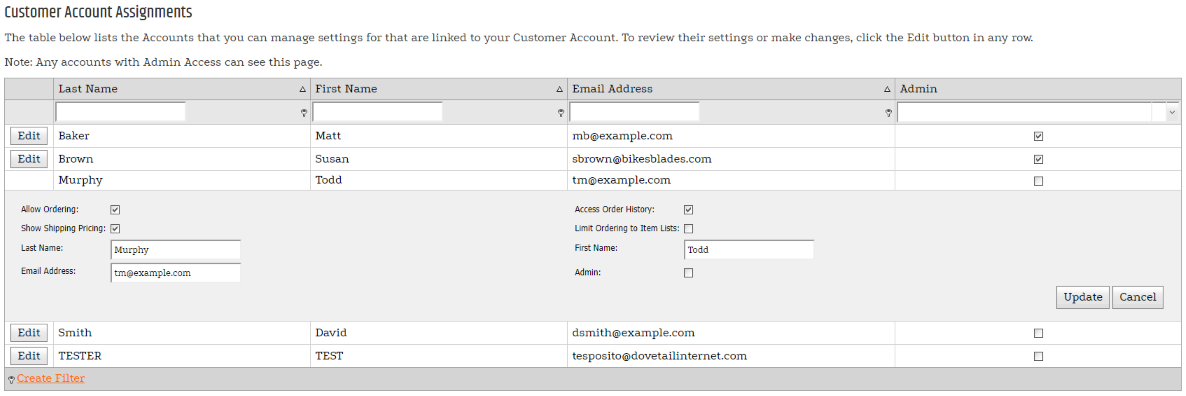
The administrator can use the Account’s first name, last name, and email address to identify the correct user before making a change. The available decisions have distinct effects:
Allow ordering
Enable ordering when the Account may purchase for the Customer. Clearing it leaves other permitted storefront access intact but prevents the Account from completing orders.
Give access to order history
Enable order-history access only when the user may review the Customer’s applicable order records. This can expose transactions created outside the individual shopper’s own activity, depending on the Account type and order-history configuration.
Show shipping pricing
Enable shipping-price visibility when the user may see freight charges during checkout. This storefront choice corresponds to the inverse of the Account Maintenance Hide Shipping Price setting.
Limit ordering to Customer Item Lists
Use the Item List restriction when the Customer’s shared lists define the products that the Account is allowed to purchase. Keep those lists maintained; removing a required item can immediately prevent the restricted Account from ordering it.
Delegate another administrator
Enable Admin only for another trusted Account that should manage the same Customer’s linked users. More than one administrator can reduce dependency on one person, but it also broadens control over ordering and information access.
Maintain Customer Item Lists
A Customer Administrator can create and edit Customer Item Lists shared by Accounts linked to the Customer. The administrator cannot use this authority to change private Account Item Lists owned by other Accounts.
Use Working with Item Lists to understand Customer versus Account ownership, storefront list maintenance, and purchase restrictions.
Review changes safely
Use a consistent review process when the Customer requests access changes:
- Verify the requester’s identity and authority within the Customer organization.
- Confirm the target email address and Customer association before editing permissions.
- Grant only the ordering, history, shipping-price, list, and administrator access required for the person’s role.
- Test with a non-administrator Account to confirm that restricted information and actions remain unavailable.
- Remove administrator access promptly when responsibilities change.
If a Customer Administrator cannot see an Account, confirm that both Accounts are linked to the same Customer. If a permission appears ineffective, review the corresponding Account Maintenance setting and any broader Customer Class, View List, Item List, hold, pricing, or ordering rule.