PunchOut Configuration
Configure each PunchOut-enabled Customer for the way its procurement application starts sessions and receives the completed cart. Open Customers > Customer Maintenance, edit the Customer, and use the PunchOut options on the Settings tab.
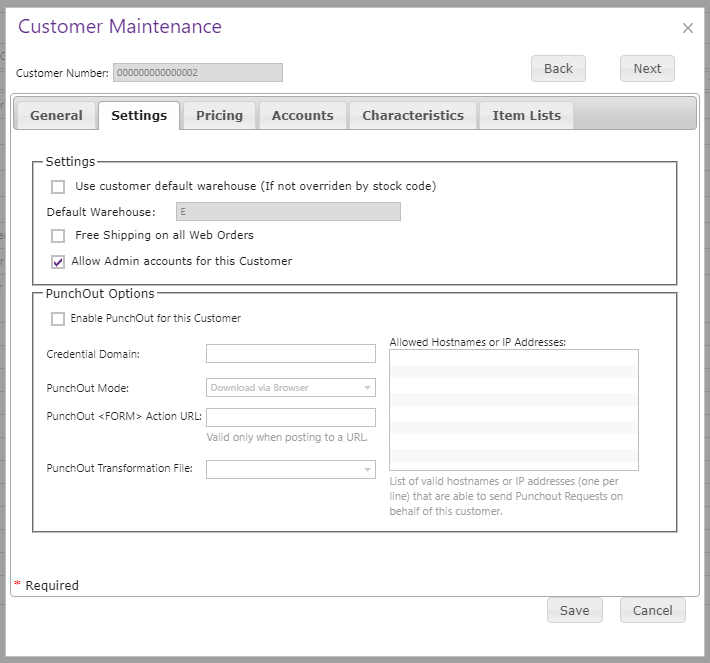
Choose how the cart is returned
CyberStore supports two documented PunchOut output modes:
- Download via Browser starts a browser download of the
PunchOutOrderMessageXML file. - FORM POST sends a form with the
PunchOutOrderMessagein a hidden field namedcXML-urlencoded. The form usesPOST; its action is the URL supplied in the request’sBrowserFormPostelement or the configured Punch Out Action URL.
Use the mode expected by the buyer’s procurement application. For FORM POST, confirm the receiving application can unpack and process the document from the hidden form field.
Select the output transformation
Use Punch Out Transformation File when the standard CyberStore output must be transformed into the structure expected by the receiving procurement system. The selected XSLT comes from the custom XSLT folder configured in Site Manager > Site Configuration > Paths.
Build the transformation against the Sample Punch Out Order Message source XML so its node mappings begin from the document CyberStore actually produces. The Customer selection becomes the default transformation for its PunchOut Accounts.
Restrict request origins
Use Punch Out Allowed Hostnames and IP Addresses to list the hosts or addresses permitted to send PunchOut requests for the Customer. Treat this allowlist as part of the relationship setup, not as optional descriptive information.
Validate the relationship
Test from the buyer’s procurement application rather than only from a normal CyberStore sign-in. Confirm that the request is accepted for the intended Customer, the buyer reaches the correct catalog, the cart is returned using the selected mode, and the receiving system accepts the transformed message.