UPS Shipping
Use a UPS Shipping Provider integration to request freight calculations from UPS during checkout. CyberStore supports the legacy UPS provider and the OAuth 2.0-based UPS OAUTH provider. Confirm that the applicable CyberStore add-on is licensed and that the organization has an active provider account before configuration.
Configure General settings
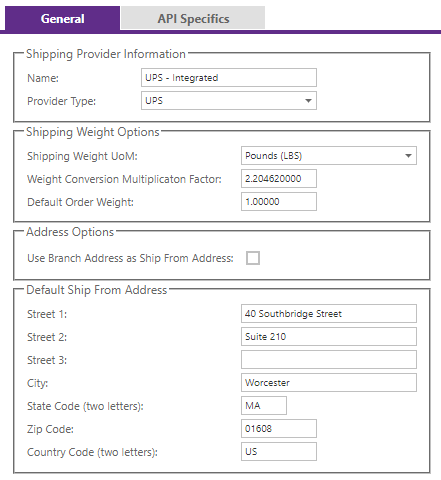
Open Setup > Shipping Providers, add or edit the provider, and complete the General tab. Select the provider type that matches the UPS credentials being configured:
UPSuses the legacy XML and Access Key integration.UPS OAUTHuses OAuth 2.0 credentials and JSON transactions.

| Setting group | What to confirm |
|---|---|
| Provider identity | Use a clear Name and select either the UPS or UPS OAUTH Provider Type. |
| Shipment weight | Set the shipping weight UOM, conversion multiplication factor, and default order weight for the Site’s item-mass data. |
| Ship-from source | Choose the SYSPRO branch address or enter the complete street, city, state, postal, and country values. |
For full common-field definitions, see Shipping Provider General Settings.
Configure legacy API settings
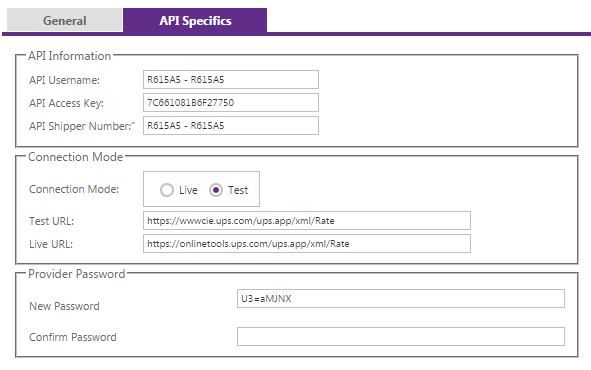
For a legacy UPS provider, obtain the UPS account values from the provider representative or integration administrator before completing API Specifics.
| Configuration | Requirement |
|---|---|
| Credentials | Supply the UPS Username, Access Key, and Shipper Number issued for the shipping account. |
| Connection Mode | Use the test setting while validating; use Live only with approved production credentials and endpoints. |
| Test URL | Enter the test rate endpoint approved for the installed CyberStore connector. |
| Live URL | Enter the production rate endpoint approved for the installed CyberStore connector. |
| Password | Enter the provider credential associated with the configured account where required. |
Provider endpoints are externally managed. Do not copy an endpoint from an older example without confirming that it is supported by both the provider and the installed CyberStore connector.
Configure OAuth API settings
For a UPS OAUTH provider, complete the provider-dependent fields displayed on the API Specifics tab.
| Configuration | Requirement |
|---|---|
| Client ID | Enter the client identifier issued for the UPS OAuth application. |
| Client Secret | Enter the corresponding client secret. |
| Connection Mode | Select Test or Live. |
| Test Base URL | Use https://wwwcie.ups.com/. |
| Live Base URL | Use https://onlinetools.ups.com/. |
CyberStore derives the token endpoint /security/v1/oauth/token and rating endpoint /api/rating/v1/rate from the base URL for the selected mode. These endpoint paths do not require separate configuration.
Treat the Client ID and Client Secret as sensitive credentials. Do not include them in screenshots, support messages, or other shared material.
Understand OAuth package splitting
UPS OAuth rating limits each package to 150 pounds. When the total shipment weight exceeds that limit, CyberStore divides the weight into packages of no more than 150 pounds before requesting the rate. This behavior uses package code 02 (Package), weight unit LBS, and applies only to UPS OAUTH providers.
For example, CyberStore rates a 370-pound shipment as two 150-pound packages and one 70-pound package.
Adjust OAuth rates
UPS OAuth returns public UPS rates. These rates may differ from the shipper’s negotiated cost. A Provider-type Shipping Method can use the existing primary or secondary rate adjustments before presenting the shipping amount to the shopper. See Shipping Calculation.
Troubleshoot OAuth calls
UPS OAuth requests and responses are written as JSON when external-call logging is enabled for the UPS object. Legacy UPS transactions continue to use XML, so both formats can appear when both provider types are configured. Review them through the External Call Log Viewer.
Set logging verbosity to Full only during troubleshooting, and disable it when the investigation is complete. Diagnostic logging can affect performance and may record sensitive data. See Logging Settings.
Validate rates
Run controlled checkout tests that cover typical and boundary conditions:
- Domestic destinations and any supported regional variations.
- Light, heavy, zero-weight, and multi-line carts.
- Branch-based and manually configured ship-from addresses.
- Expected UPS services and rates appropriate to the selected provider type.
UPS OAUTHreturns public UPS rates rather than the shipper’s negotiated cost. - Provider errors, unavailable services, and invalid addresses.
For UPS OAUTH, also test a shipment over 150 pounds and confirm the returned rate accounts for the expected package split.
Compare the CyberStore result with the provider account or an approved provider test. Record the accepted settings before changing Connection Mode to Live.