ItemReturnForm Widget
The ItemReturnForm widget lets a signed-in shopper submit a return request for one or more items. Shoppers can look up an order, add individual product numbers, set return quantities and problem codes, provide notes, and attach permitted files.
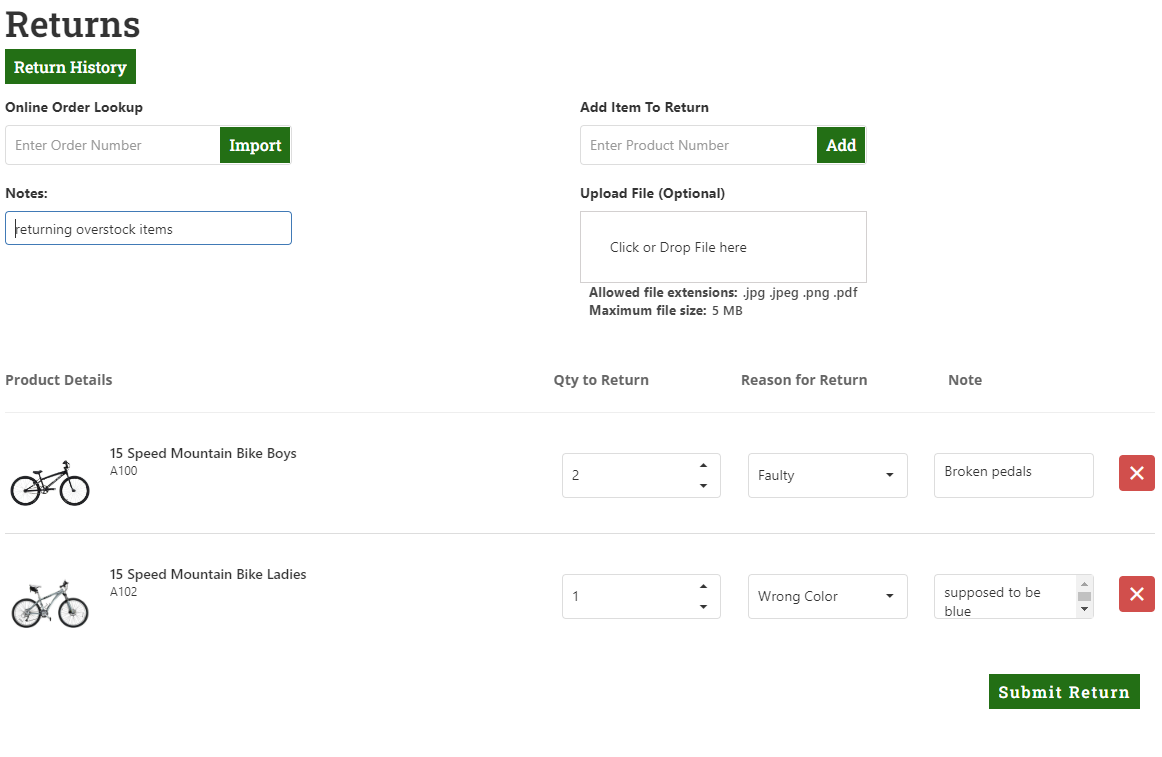
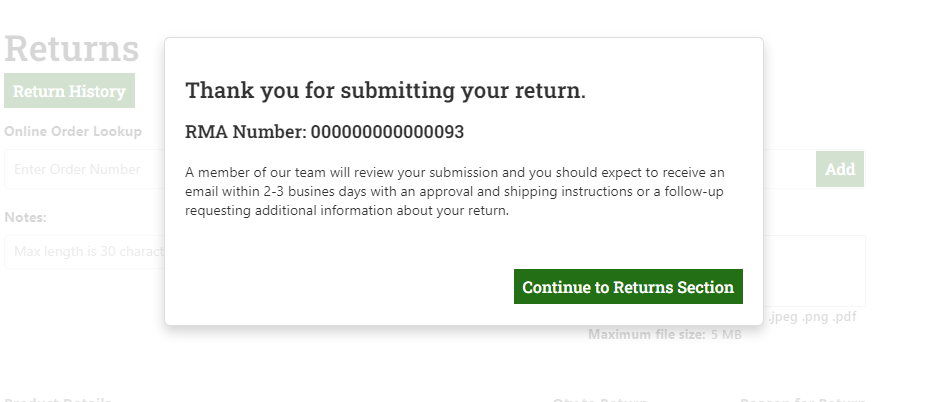
After submission, the widget displays a confirmation and makes the return available through the shopper’s return-history workflow.
Add the widget to a page
<Control src="LoadWidgetControl.ascx"
    FileLocation="ItemReturnForm.html"
    RequireLogin="true"
    Options="allowedExtensionsForUpload: '.jpg, .jpeg, .png, .pdf',
        maxFileSize: 4500000,
        allowMultipleFiles: false" />
Widget options
| Option | Default | Valid values or format | Effect |
|---|---|---|---|
allowedExtensionsForUploadString | '.jpg, .jpeg, .png, .pdf' | File-extension list | Sets permitted attachment types. |
maxFileSizeNumber | 4500000 | File size | Sets the attachment size limit. |
displayRulesBoolean | true | true, false | Shows or hides permitted attachment types and size. |
selectButtonTextString | 'Click or Drop File here' | Text | Sets the attachment-control label. |
allowMultipleFilesBoolean | false | true, false | Allows multiple attachments. |
fileUploadPrefixString | '' | Text | Adds a prefix to the uploaded file name. |
fileUploadSuffixString | '' | Text | Adds a suffix to the uploaded file name. |
AddReturnNumberToFileNameBoolean | true | true, false | Adds the return number to the uploaded file name. |
strObscureFilenameBoolean | false | true, false | Uses a randomly generated uploaded-file name. |
popupTextString | Not specified | Text | Sets the confirmation-popup text. |
popupHeaderString | Not specified | Text | Sets the confirmation-popup header. |
popupButtonTextString | Not specified | Text | Sets the confirmation-popup button text. |
submitButtonTextString | Not specified | Text | Sets the submit-button text. |
salesOrderPlaceholderString | Not specified | Text | Sets the order-lookup placeholder text. |
Validate return submission
- Sign in with a shopper account that has eligible return items.
- Look up an order, add an individual item, set quantities and problem codes, and enter notes.
- Attach an allowed test file and verify unsupported or oversized files are rejected.
- Submit the request and confirm the return is available in the shopper’s return-history workflow.
The attachment options are client-side workflow settings. Uploaded files must also meet the server-side validation described in File Upload Security.