Integrations
Use the Integrations tab in Site Manager > Site Configuration to enable and configure third-party services used by the site.
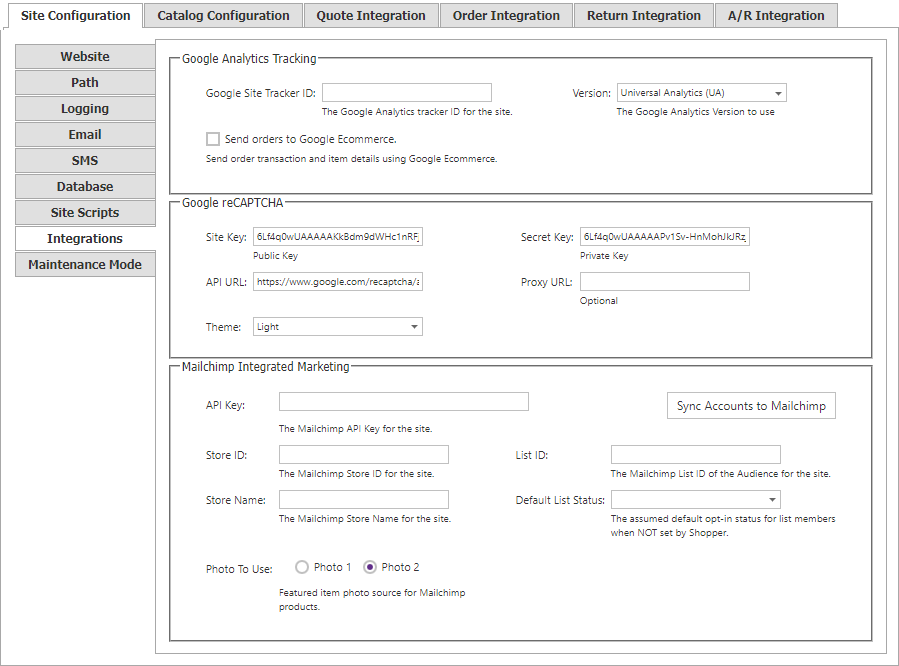
Google Analytics
| Setting | Description |
|---|---|
| Google Site Tracker ID | The unique tracker ID issued when the site’s Google Analytics account is set up. Page-view data begins flowing to Google Analytics after the value is saved. |
| Version | Google Analytics version used by the site. |
| Send orders to Google Ecommerce | Sends order transaction and item information to Google Ecommerce when the configured Google Analytics service accepts e-commerce data. |
Google reCAPTCHA
Complete the required fields to use reCAPTCHA on the site.
| Setting | Description |
|---|---|
| Site Key | Public reCAPTCHA key for the site. Required. |
| Secret Key | Private reCAPTCHA key for the site. Required. |
| API URL | Address of the reCAPTCHA API. Required. |
| Proxy URL | Address of a proxy server, if required. Optional. |
| Theme | Standard reCAPTCHA theme: Light or Dark. |
Mapping services
Configure a mapping provider when CyberStore must retrieve precise latitude and longitude values from distributor addresses.
| Setting | Description |
|---|---|
| Google Maps API key | Allows CyberStore to request precise distributor coordinates from Google Maps. |
| Bing Maps API key | Allows CyberStore to request precise distributor coordinates from Bing Maps. |
When neither mapping key is available, CyberStore can estimate U.S. distributor coordinates from its ZIP-code database. Estimated coordinates are identified in Distributor Maintenance so they are not mistaken for precise address-level results.
After configuring a provider, update a test distributor and verify its location in the Management Console before running a bulk update. See Distributors Menu for location maintenance and Distributor Settings for result-distance limits.
Mailchimp integrated marketing
| Setting | Description |
|---|---|
| API Key | Integration API key from the Mailchimp account. |
| Store ID | Identifier for this store. Choose a stable value; do not change it after the site is in production. |
| Store Name | Name used to create the store in Mailchimp. Choose a stable value; do not change it after the site is in production. |
| List ID | Mailchimp ID for the list segment. |
| Default List Status | Initial opt-in status for shoppers linked to Mailchimp. With Opt-Out, shoppers are not subscribers in Mailchimp and their data is available only for analytics. |
| Photo to Use | Featured item photo used for product images referenced from Mailchimp. |
Select Sync MailChimp Customers to schedule the UpdateMailChimpCustomers operation. It synchronizes CyberStore accounts to Mailchimp customers and list members, and tags each Mailchimp shopper record with its CyberStore customer class.
For correct Mailchimp currency data, ensure every CyberStore currency is configured with a country so the applicable ISO 4217 currency code is associated with the customer’s currency. See Management Console > Setup > Currency.
Site Manager changes take effect immediately. A confirmation mark appears next to the changed field and disappears when the change is saved.