Account Security
CyberStore protects shopper and Management Console accounts through non-retrievable password storage, verified password reset, optional multi-factor authentication, automatic failed-login lockout, and administrator-controlled account locks.
Password storage and reset
Passwords are stored in a non-reversible form. Neither a shopper nor an authorized Console user can retrieve an existing password; it can only be replaced.
When a shopper selects Forgot Password and submits the Account email address, CyberStore sends a six-digit verification code and a link to the Change Password page. The verification code expires 30 minutes after the request.
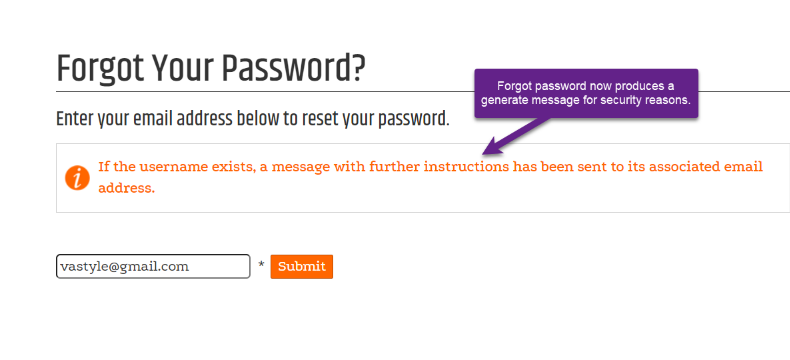
The shopper follows the link, enters the verification code, and supplies a new password. CyberStore then returns the shopper to sign-in.
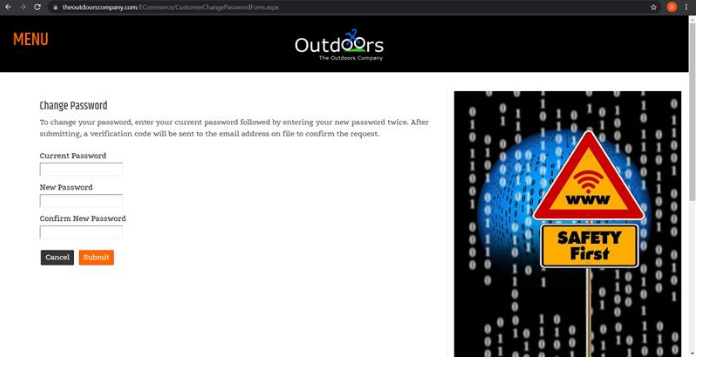
The Change Password interface is available to a signed-in Account or to a shopper who has successfully verified a Forgot Password request. See Forgot Password Email for template configuration and delivery testing.
Multi-factor authentication
When Require Multi-Factor Authentication is enabled, every shopper login for the site requires a verification code after the password is accepted.
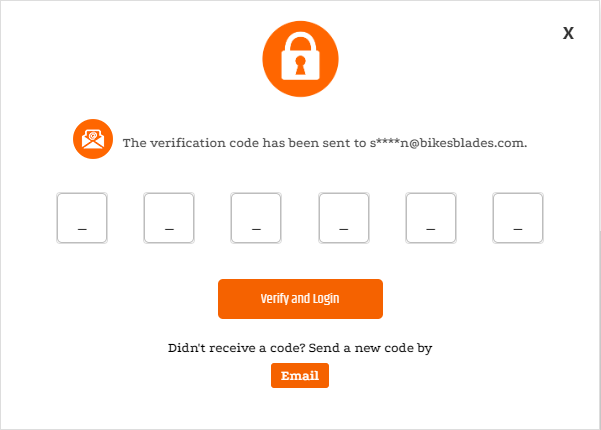
CyberStore sends the code by SMS when both the site and Account have a confirmed SMS method. Otherwise, it uses email. The shopper can request another code only through a delivery method that has been configured and confirmed.
Use Site Manager > Catalog Configuration > Account Settings to enable the site-wide requirement.
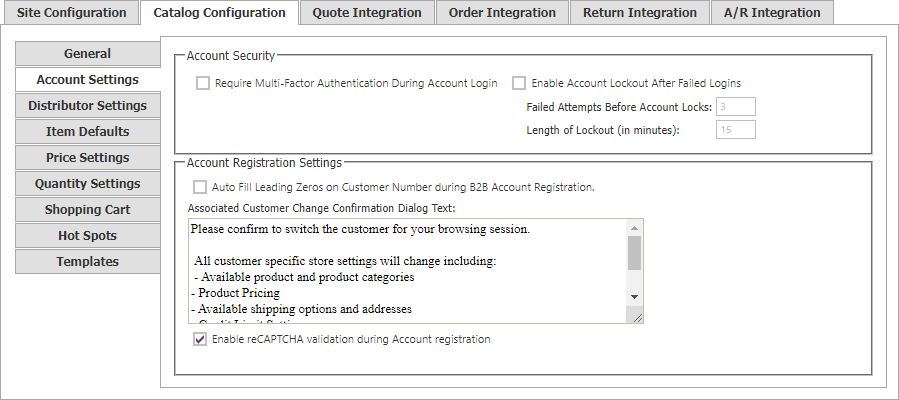
| Setting | Security behavior |
|---|---|
| Require Multi-Factor Authentication | Requires the second verification step for all shopper logins on the site. |
| Enable Account Lockout | Enables automatic lockout after successive failed password attempts. |
| Failed Attempts Before Account Locks | Sets the permitted failures. The default is 3. |
| Length of Lockout (in minutes) | Sets the automatic lock duration. The default is 15 minutes. |
Shopper-account lockout
After the configured number of failed sign-ins, CyberStore prevents further attempts until the lock period ends. Once that period has elapsed, a correct password signs the shopper in and clears the timed lock.
An authorized Console user can also lock a specific shopper Account when compromise is suspected. A manual lock remains under administrator control rather than relying on the automatic interval.
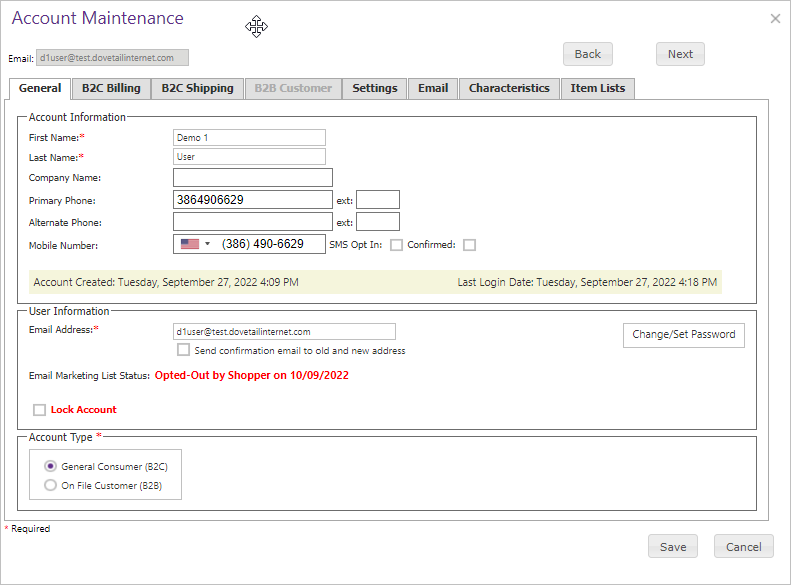
Use Customers > Account Maintenance > General to reset the password, set or clear the lock, and maintain Locked until. See General Account Settings.
Management Console user lockout
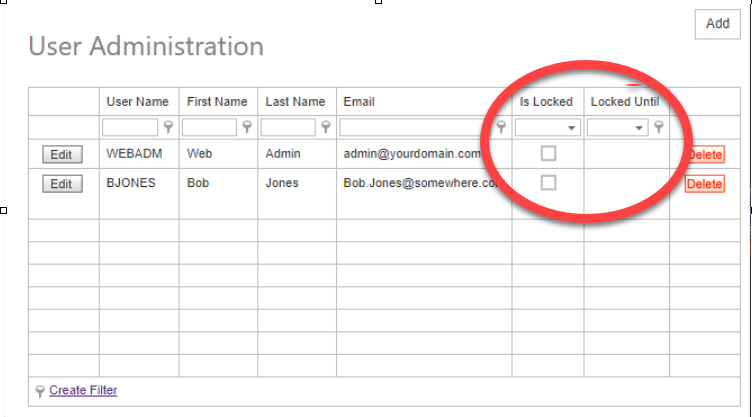
Console users are also locked after repeated failed sign-in attempts. The documented default is three failures and a 15-minute lock. Authorized administrators can review or clear a user’s lock directly.
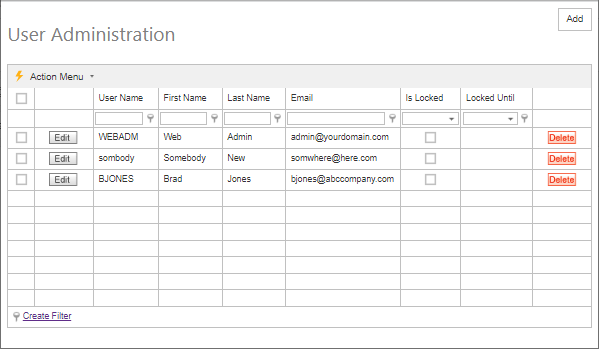
Use Tools > User and Group Administration > User Administration to review Locked until and Account Lock Status. Clear the lock selection and save to unlock the user. See User Administration.
Operational safeguards
- Verify ownership through the registered Account email or confirmed SMS destination; do not disclose whether an unknown email belongs to an Account.
- Reset passwords instead of attempting to recover them.
- Use manual lockout when compromise is suspected and investigate before unlocking.
- Test password-reset expiration, MFA fallback, timed lock expiry, and administrator unlock separately.
- Limit Account Maintenance and User Administration permissions to trusted operators.