CyberStore Themes
A CyberStore theme is the collection of folders and files that defines a site’s page structure, visual design, content, and selected user-interface behavior. Theme files are combined with CyberStore and SYSPRO data when the application builds storefront pages.
Work on a copied theme in a development or staging environment. Theme folders are portable between CyberStore instances and are not modified by application updates, but a customized theme can still depend on controls and configuration supported by the installed CyberStore version.
Theme folder structure
The Site directory groups content, controls, product images, pages, design assets, XML configuration, and XSLT customizations beneath the active theme structure.
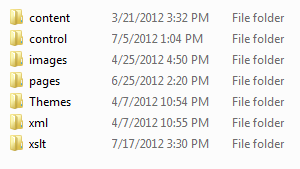
| Folder | Purpose |
|---|---|
content | HTML fragments used as page-content blocks, such as a homepage introduction. |
control | Site controls that provide storefront functions such as sign-in, catalog lists, Account maintenance, and checkout. Change these files only when the customization has been designed and tested for the installed version. |
images | Product-image storage. The conventional Photo1 and Photo2 subfolders hold thumbnail and full-size item images. Images can be maintained through the Management Console or placed in the configured locations. |
pages | CyberStore ASPX system pages available to the theme. This location can contain supported customized or additional pages. |
themes | Page-wrapper and design files, commonly including the header, navigation, and footer. Its css, js, and images subfolders hold stylesheets, scripts, and design images. |
xml | XML configuration files, including SitePages.config and AddressMapping.config. |
xslt | XSLT files used for supported transformations of data returned through SYSPRO e.net queries. |
Plan a theme change
Identify which layer owns the intended result before editing:
- Change an HTML fragment when the requirement is page copy or a reusable content block.
- Change CSS or a design image when the requirement is visual presentation.
- Change
SitePages.configwhen the requirement is page composition, placeholder assignment, or a supported control property. - Change a page, control, script, or XSLT file only when implementation work is required and the installed CyberStore version supports the customization.
Keep a source-controlled copy of the theme, document environment-specific configuration, and do not store credentials or secrets in portable theme files.
Design Manager and global assets
Administrators can use Site Manager > Site Configuration > Design to maintain supported fonts, colors, company branding, the logo, and the favicon. The Design interface updates variables.css; its Code tab supports direct editing when the required change is not available through a visual field. See Design Settings for the administration workflow.
CyberStore automatically minifies and caches global.css and global.js during application startup. It assigns a GUID-based identifier to generated filenames, removes outdated generated files, and adds the current minified references to the page <head>. If a generated file is missing or minification fails, CyberStore falls back to the original global file and attempts regeneration on a later load.
Do not edit a generated minified file. Make the accepted change in global.css, global.js, or the applicable source file, then validate the generated storefront output. Troubleshooting behavior may load original files instead of generated files; confirm the applicable environment setting before using filenames from browser developer tools as deployment evidence.
Move a theme between environments
Copying the theme folder moves its files, but it does not prove that every dependency is present in the destination environment. Before publishing the copied theme:
- Confirm the destination CyberStore version supports the pages, controls, properties, scripts, and transformations used by the theme.
- Compare environment-specific paths, URLs, certificates, provider settings, and other configuration.
- Confirm product and design images are present in the expected locations.
- Validate anonymous, signed-in, catalog, Account, cart, checkout, and error-page experiences.
- Test responsive layout and supported browsers before directing production traffic to the theme.
See The SitePages.config File for the XML that maps a page to its theme, placeholders, and controls.