Feature Overview: Design Style Manager & Global Script Minification (#23939)
Overview
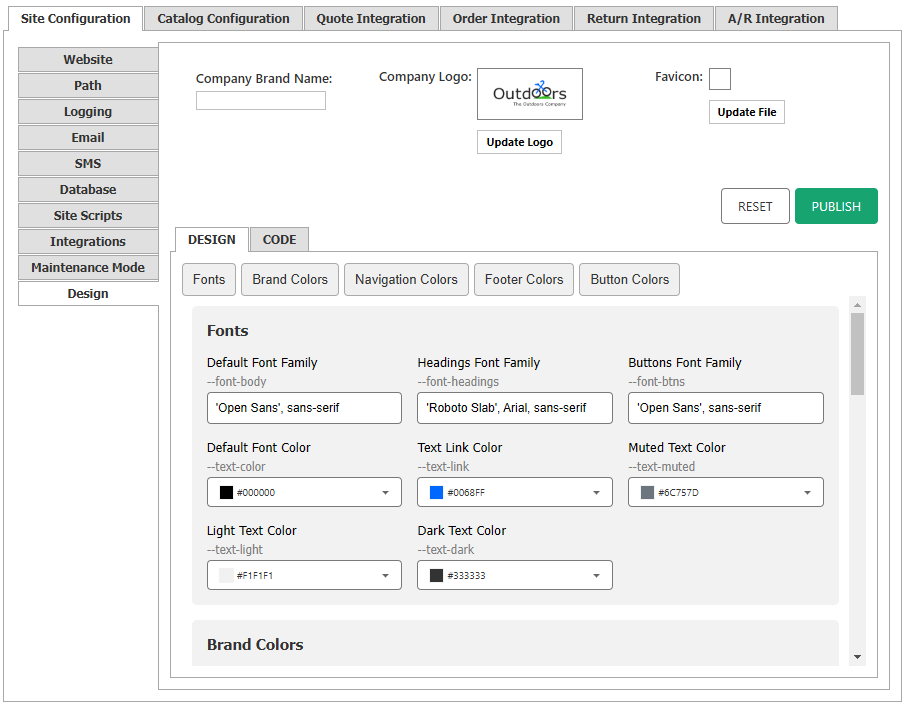
The Design Style Manager and Global Script Minification introduce enhancements to CyberStore’s front-end customization and performance optimization. Users can access the Design Style Manager via Site Manager > Site Configuration > Design, while minified global scripts are automatically managed during application startup.
In this Topic
- Design Tab
- Reset & Publish Buttons
- Code Tab
- Branding Options
- Global CSS & JavaScript Minification
- System-Level CSS & JS in CyberStore Pages
Design Tab
The Design Tab provides a simplified interface for managing CyberStore’s visual styles. Features include:
- Quick “jump to” navigation buttons – Instant access to specific design sections.
- Text fields and color pickers – Modify font families, brand colors, navigation colors, footer colors, and button colors.
This interface allows administrators to efficiently update site designs without direct code interaction.
Reset & Publish Buttons
- Reset – Reverts all design changes to the current values in the variables.css file.
- Publish – Saves all applied changes to variables.css, making them live on the storefront.
Code Tab
Clicking the Code Tab provides a text editor where users can directly modify the variables.css file. This allows for advanced styling adjustments while maintaining accessibility to Reset and Publish functions.
Branding Options
Users can update key branding elements within the Design Tab:
- Company Brand Name – Editable text field.
- Company Logo – Upload an image file.
- Favicon – Upload an icon file for browser tab representation.
These features ensure consistency in CyberStore’s branding.
Global CSS & JavaScript Minification
To improve site performance, the system now automatically minifies and caches the global CSS and JavaScript files during application startup.
How It Works
- Unique File Code Generation – If no unique code exists, a GUID is generated and used in file names.
- Minification Process – Reads global.js and global.css, minifies them, and stores the output.
- Error Handling – Logs errors and falls back to original files if issues occur.
- Cleanup – Removes outdated minified files to maintain efficiency.
- File Writing – Saves minified files in the correct directories for use in page generation.
System-Level CSS & JS in CyberStore Pages
- The CyberStore Page Engine dynamically adds references to the minified files in the <head> section.
- If a minified file is missing, the system falls back to the original files and regenerates the minified versions on the next load.
- In Debug Mode, the system always loads the non-minified versions to facilitate troubleshooting.
Example Output in Google DevTools
A sample output in Google DevTools (F12) will show minified files in the format with the dynamically generated unique file identifier.
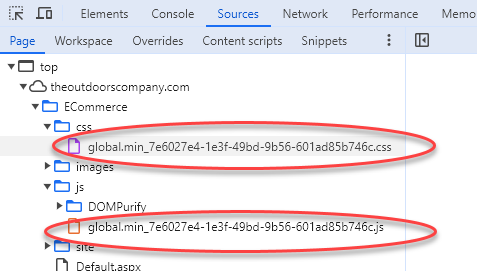
This update enhances both usability and performance, ensuring CyberStore sites are easier to customize while running efficiently.