Access to Pricing
Pricing access rules determine whether a shopper can see an item price and which price values CyberStore presents. When pricing is missing or unexpected, check the shopper, Customer Class, item, View List, UOM, and site-wide price settings together.
Responsibilities of SYSPRO and CyberStore
SYSPRO supplies the base price, Customer-specific price, and supported discounts. CyberStore selects and presents those values, can apply web-specific adjustments, and can hide pricing according to storefront configuration.
| Price type | Source and purpose |
|---|---|
| Default Price | SYSPRO-derived unit price for the site’s Default Customer. It provides anonymous and list-price presentation. |
| Customer Price | SYSPRO-derived unit price for the active Customer. |
| Discount Price | Customer Price after an applicable SYSPRO discount. |
| Web Price | The lowest applicable SYSPRO-derived price after a CyberStore item, category, or accessory discount. |
Price visibility checks
Before displaying any part of an item’s price, CyberStore evaluates whether a valid price exists and whether the shopper and item are eligible to see it. The principal checks are:
- The required price value exists and is greater than zero, unless zero-price behavior has been explicitly enabled.
- Anonymous pricing is not hidden when the shopper is signed out.
- The Customer Class price-display option permits the applicable comparison or Customer price.
- The item’s available UOM selection supports a purchasable price.
- The item is approved and visible through the active View List.
- When Add to Cart is disabled, Hide pricing when Add to Cart is disabled does not suppress the price.
Configure the site-wide checks in Catalog Configuration Price Settings.
Price selection for anonymous and signed-in shoppers
An anonymous shopper can see only the Default Price, and only when the site permits anonymous pricing. CyberStore-exclusive promotions and discounts can still affect an anonymous shopper when the promotion or discount is configured to apply.
For a shopper using a Customer:
- Customer Price is the shopper’s base price when Customer pricing is permitted.
- Default Price is a useful comparison only when it is greater than Customer Price and the Customer Class display option permits it.
- Discount Price is shown when it is lower than Customer Price.
- Web Price is shown when an applicable CyberStore item or accessory discount makes it lower than the other available selling prices.
- Savings can be shown as an amount and percentage when the shopper pays less than the highest visible comparison price. A sale graphic applies only when Web Price is shown for the cart item.
The storefront adds the lowest applicable selling price to the cart even when the Customer Class presentation hides one of the comparison values.
Customer Class price-display options
Use Customers > Customer Class Maintenance > Settings to control presentation for members of a class.
| Option | Shopper experience |
|---|---|
| Default price only | Shows the Default Price without the Customer-specific price. |
| Customer price only | Shows the active Customer’s price without the Default Price comparison. |
| Default and Customer prices | Shows both values when they differ and meet the comparison rules. |
| Shopper-controlled pricing | Allows the signed-in shopper to show or hide Customer pricing. |
| Default plus shopper-controlled pricing | Keeps Default Price visible while allowing the shopper to show or hide Customer pricing. |
| Hide all pricing | Suppresses price presentation for members of the class. |
See Customer Class Defaults and Pricing for the maintained settings and label precedence.
Pricing by unit of measure
An item can use the stocking, alternate, and other UOMs supplied by SYSPRO. The stocking-unit conversion is 1. When alternate and other conversions are also 1, the storefront lists only the stocking UOM. If no available UOM is selected for the item in CyberStore, the shopper cannot see a price or order the item.
When more than one UOM is available, UOM Quantity Selection Type in Catalog Configuration selects a dropdown or grouped presentation.
Dropdown presentation
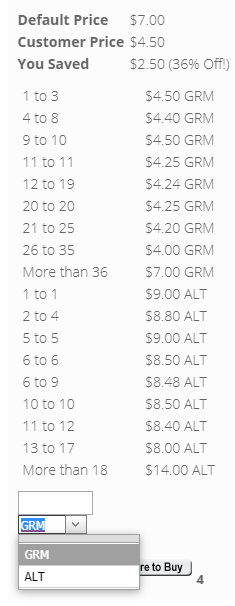
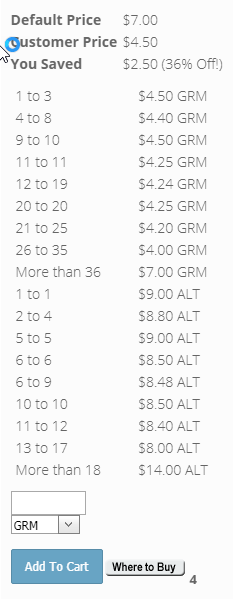
The dropdown presentation combines one quantity field with a selectable UOM. The original storefront examples below show the control in two display contexts.
| Element | Purpose |
|---|---|
| Price | Shows the applicable unit price for the selected UOM and quantity. |
| Quantity | Accepts the number of selected units to purchase. |
| UOM dropdown | Selects an available ordering UOM. |
| Add to Cart | Adds the entered quantity in the selected UOM. |
Grouped presentation
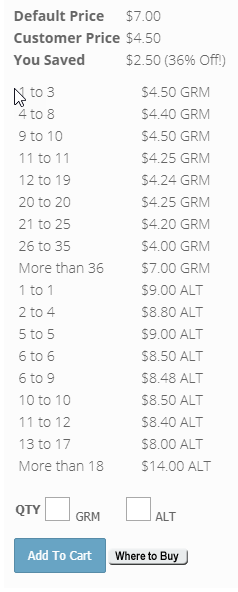
The grouped presentation gives each available UOM its own quantity and price row.
| Element | Purpose |
|---|---|
| Quantity | Accepts the desired quantity for the corresponding UOM. |
| Price | Shows the unit price for that UOM. |
| Add to Cart | Adds the entered quantities to the cart. |
Other reasons pricing may be hidden
Pricing can also be limited by the active View List, item approval, or cart eligibility. A View List can hide an item, hide its price, or prevent it from being added to the cart. An unapproved item is not available to the storefront. A site can also hide pricing whenever Add to Cart is unavailable.
For a zero price, Catalog Configuration determines whether to show a custom link and whether the item can be added to the cart. Customer Class configuration can separately hide shipping prices.
Troubleshoot missing pricing
Check the following conditions in order:
- Confirm that the item is approved and visible to the active View List.
- Confirm that at least one available UOM is selected in Item Maintenance > Pricing.
- Confirm that SYSPRO returns a valid price for the stock code, quantity, Customer, currency, and UOM.
- For an anonymous shopper, confirm that anonymous pricing is enabled.
- Review the active Customer Class price-display option.
- If Add to Cart is unavailable, review Hide pricing when Add to Cart is disabled.
- For a zero-price item, review the custom-link and zero-price cart settings.
- Clear or rebuild the relevant price cache after changing source pricing.